 Türkçe
 Pcap Touch Monitor
CATEGORIES
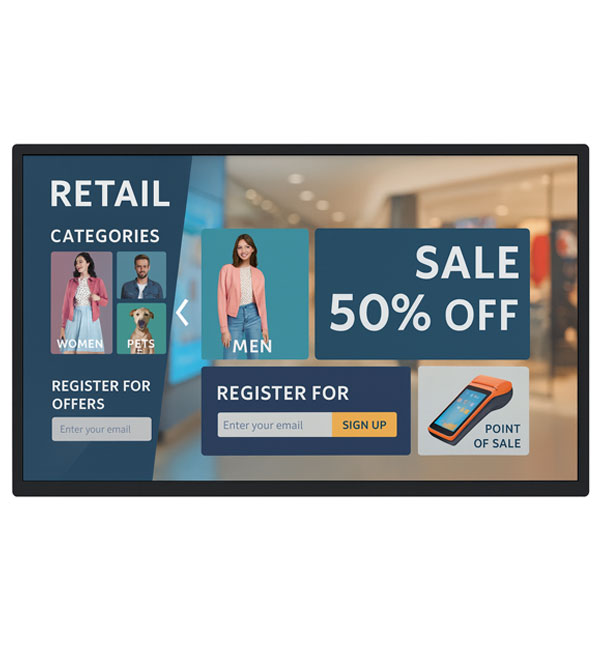
When selecting a touch display, check operating system compatibility, video input and the touch connection together. User reach, mounting method and the working space in front of the screen are also part of the hardware decision.
Pcap Touch Monitor Frequently Asked Questions
-
- Check the video and touch-data connections separately. The computer’s ports and operating system must match the selected model. Confirm the required cables and mounting hardware when requesting a quotation. Start with the content and viewing distance. Information pages with detailed text and advertising layouts with large images have different display needs. Compare screen size, resolution, brightness and orientation together. Inputs should suit the existing content source, while the stated operating conditions should suit the installation location. Reflections from nearby lighting and access for maintenance also matter. Check the specification against the exact screen size that will be ordered.
-
-
- Share the model, quantity and installation location. Specify mounting, content playback or management software and any accessories separately so the hardware and service scope can be compared for your requirements. Consider the available installation space as well as the screen diagonal. A quotation request can include the intended task, daily operating hours, indoor or outdoor location and delivery destination. For multiple sites, list quantities and differing requirements separately so that model options can be compared. Identify any required connection or function that is not shown in the specification. This helps define a comparable equipment proposal rather than a screen price without the installation context.
-
-
- Review sample content at its intended display size. Check small text, prices and logos from the furthest viewing position, and match the layout to the screen aspect ratio. Brightness alone does not determine readability: ambient light, reflections, contrast and text size also matter. Share sample content and the viewing distance before choosing a model.
-
-
- Check the display dimensions, weight and any mounting pattern listed in the specification. The bracket load capacity must suit both the equipment and the mounting surface. Allow access to power and video cables, ventilation openings and maintenance points. Before installation, confirm that the chosen model supports the intended landscape or portrait orientation.
-
-
- List the screen size, ambient light and content source at each location. If the same model will be used across sites, check that mounting orientation, connections and operating conditions are suitable everywhere. For central content updates, identify the existing software and network. Compare quotations with hardware, media players, software licences and mounting listed separately.
-
-
- Options listed in this category include PCAP 10.1″ Touch Monitor, PCAP 11.6″ Touch Monitor, PCAP 12.1″ Touch Monitor, PCAP 13.3″ Touch Monitor, PCAP 15″ Touch Monitor, PCAP 15.6″ Touch Monitor. Start with the installation location and the task, then narrow the shortlist accordingly. Open each model page to check the complete product code and that model’s technical values. Listing images do not establish that all sizes or equipment options are identical. Record physical dimensions, connections, mounting format and stated operating conditions in a consistent order when comparing products. If the new equipment will be used with an existing system, provide those model details too. Share your preferred products and quantities so the options can be reviewed together; identifying additional equipment and installation requirements helps define the appropriate scope.
-
-
- Examples from the current specification tables of models in this category: PCAP 10.1″ Touch Monitor: display size 10.1, resolution 1280x800, brightness 300 cd/m². PCAP 12.1″ Touch Monitor: display size 12.1, resolution 1024x768, brightness 450 cd/m². PCAP 15″ Touch Monitor: display size 15, resolution 1024x768, brightness 350 cd/m². PCAP 15.6″ Touch Monitor: display size 15.6, resolution 1920x1080, brightness 450 cd/m². PCAP 17.3″ Touch Monitor: display size 17.3, resolution 1920x1080, brightness 300 cd/m². PCAP 19″ Touch Monitor: display size 19, resolution 1280 x 1024, brightness 450 cd/m². PCAP 23.8″ Touch Monitor: display size 23.8, resolution 1920x1080, brightness 550 cd/m². PCAP 27″ Touch Monitor: display size 27, resolution 1920x1080, brightness 300 cd/m². PCAP 43″ Touch Monitor: display size 43, resolution 1920x1080, brightness 700 cd/m². PCAP 65″ Touch Monitor: display size 65, resolution 3840 x 2160, brightness 500 cd/m². These values apply only to the named models and should not be generalised to the entire range. Resolution, brightness and physical screen size describe different characteristics. Use the complete model code when comparing similar-looking products, and check operating conditions for your application separately. Refer to each product’s own specification table for connections, mounting and additional equipment.
-

